Prerequisites
An understanding of Autonomous Database and Database Actions Page.
- Install MSSQL server and keep login and database user details handy.
- Install Oracle SQL Developer. Extract the zip that you received and launch the SQL Developer Tool.
- In order to add an utility in SQL Developer, download the jTDS – SQL server JDBC driver. Once you have the jTDS driver installed on your system, extract and save it in the same location.
- Select Preferences.
- Expand Database.
- Select Third party JDBC Driver.
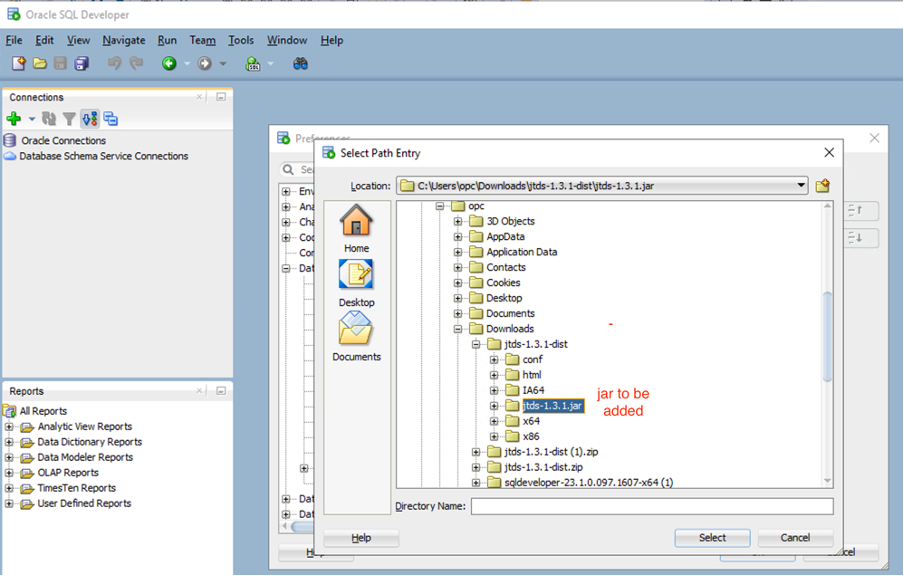
- Click Add Entry and select the jar file as shown in the following image.
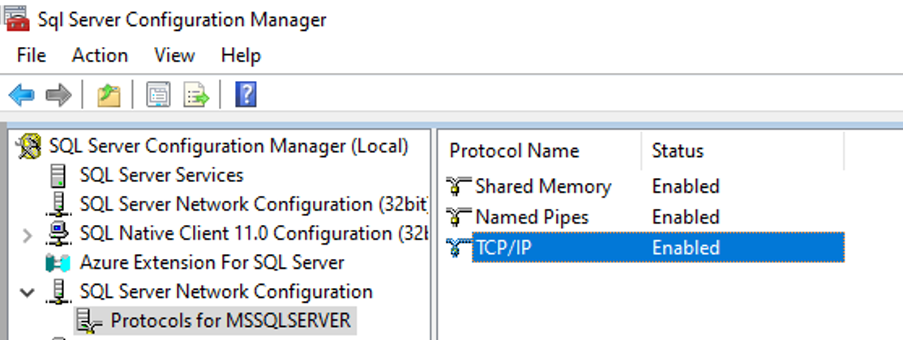
- Cross check if TCP/IP port is enabled on the MSSQL Server.
- Important: Copy
ntlmauth.dllfrom the jtds folder location:\jtds-1.3.1-dist\x86\SSOto the SQL Developer folder location:sqldeveloper\jdk\jre\bin.Note: If you skip Step 7, you might get an error while listing the database or connecting to the MSSQL server database. - Launch the New Database Connection wizard by clicking on the + icon as shown in the following image.
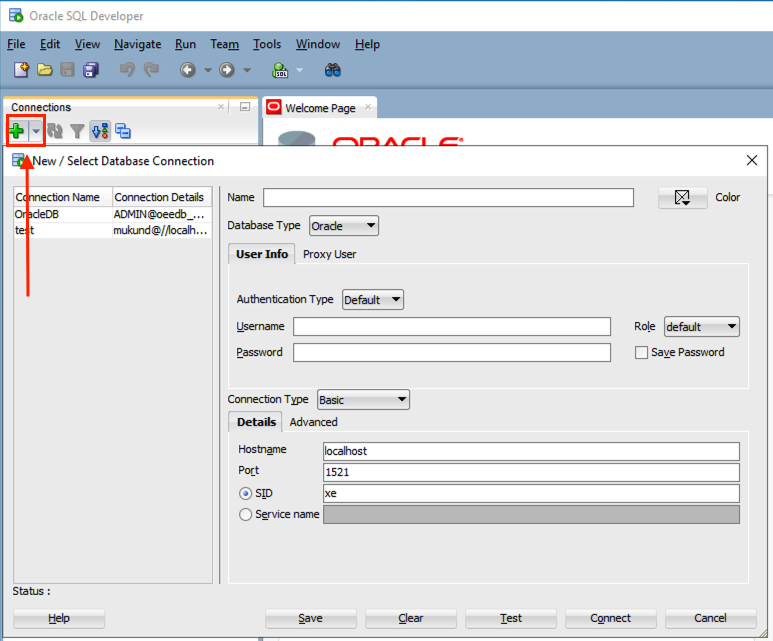
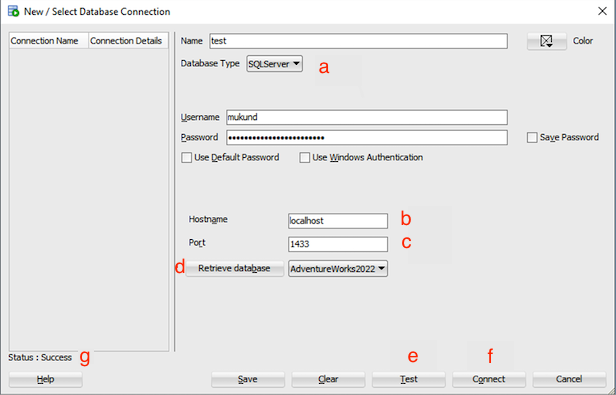
- In the New / Select Database Connection window, provide the following details.a. Select Database Type as SQLServer.b. Hostname value is taken as localhost in sample environment.c. Default port number for MSSQL server is 1433.d. Click Retrieve database to fetch database details.e. Click Test and make sure Status: Success is displayed as indicated by g in the image.f. Click Connect to connect to the session.g. Test connection success message is displayed.
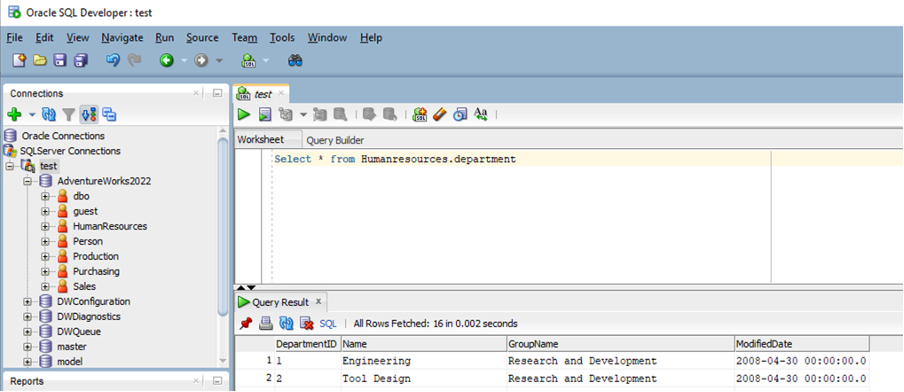
After you have successfully connected to MSSQL Server using SQL Developer, you can open the query window and execute commands.